Project Files
Submission Package
The Submission Package tab allows Pronto users to upload files related to their application. Pronto users will interact with the Submission Package tab in two scenarios:
- During the application submission process.
- Upon request to upload additional documents to an application post-submission.
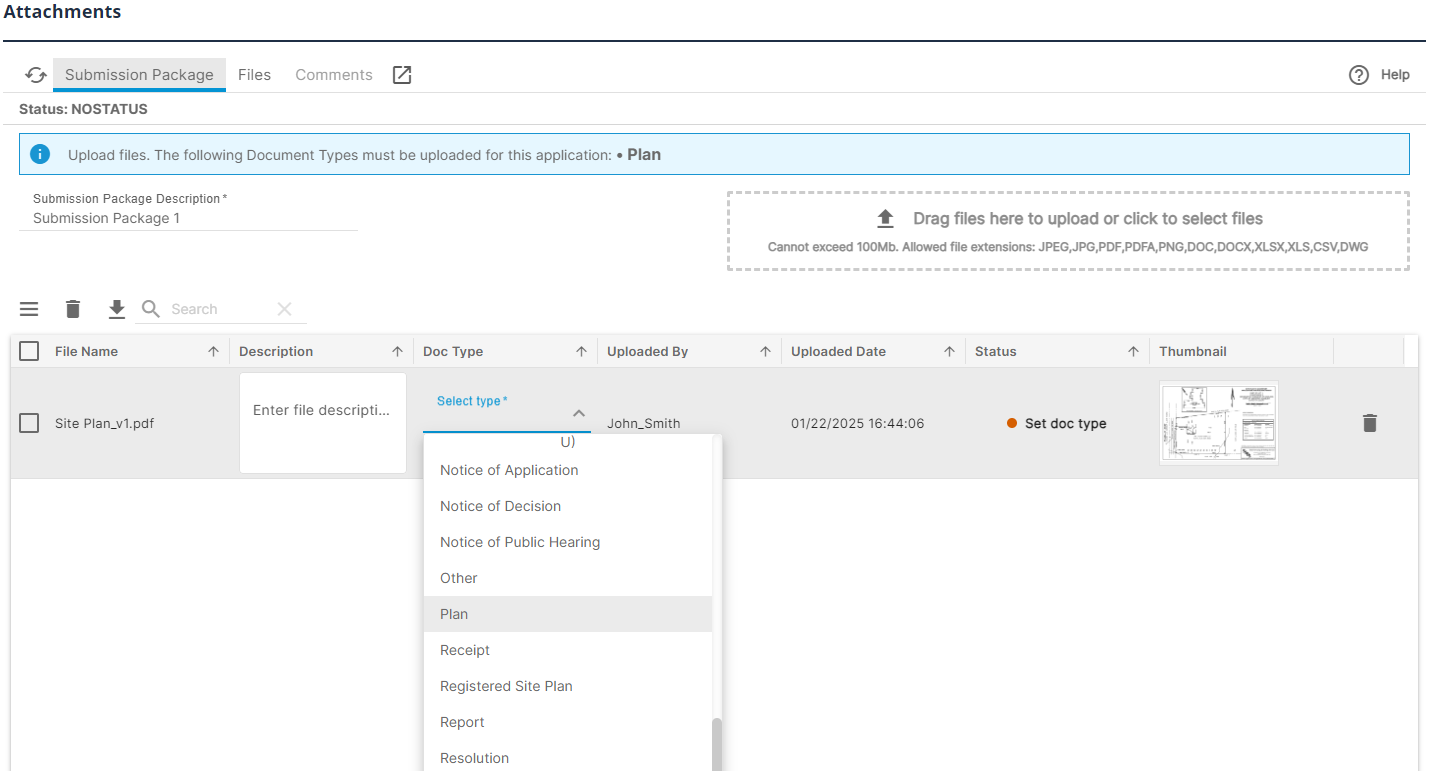
Regardless of scenario, uploading a document will require the user to select a document type to associate with the file.
Application Submission Process
During the final stages of the application submission process, the submission package tab will appear under the Support Documentation step. The example below shows the requirement for a document of type “Plan” to be uploaded to proceed. The system will state the allowed file extensions and maximum file size which may change over time.
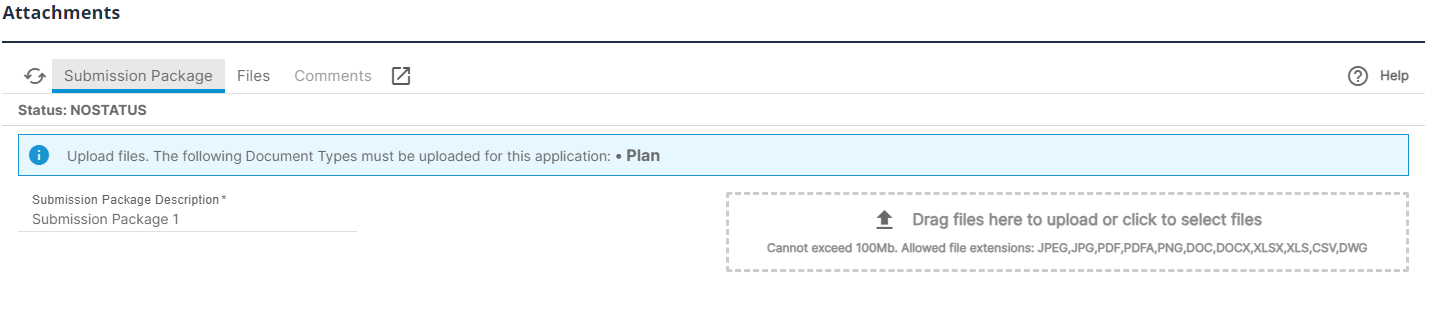
Click or drag the necessary files to begin the upload process. Once the files are uploaded and scanned for viruses, the system will ask the user to select the appropriate document category for each file prior to selecting ‘Continue Application’ at the bottom of the page.
Note: additional information around document upload requirements is provided in the Support Documentation section. The applicant may also receive communications to upload additional documents post-submission.
Uploading Documents Post-Submission
Once an application is submitted, applicants may be asked to provide additional documents (plans, reports, other) post submission via email. Depending on the complexity of the application these requests may occur multiple times for an approval to be granted.
To access previously submitted applications, Select Home>My Records from the top left menu then select the application.
On the application details page, select the Project Files tab:

The upload process mimics the Application Submission Process section above.
Files
Pronto users can access files related to their application by selecting the Files section under the Project Files tab.
Files available to the applicant include:
- Files previously uploaded by the applicant (plans, drawings, reports, requested files etc.)
- Files uploaded by City staff to be shared with the applicant (notices, approved applications/plans/permits, invoices, receipts etc.)
Users can download any document(s) in the Files tab at any time. To do so, select one or more files from the list and then Download:

Once the Download button is selected, the system will provide a link to download the documents at the bottom of the Files list. Users may have to scroll down to see it:
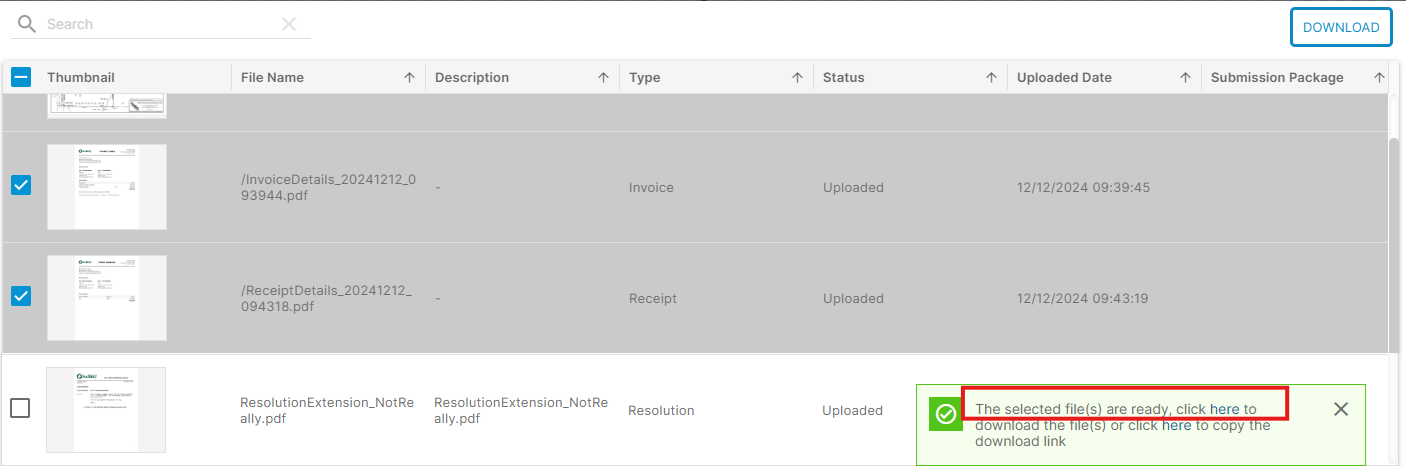
Note: Approved or issued documents (such as approved plans or issued permits), will be labelled as such under the Type column. In most cases the system will have included the approved documents in an email to the user at time of approval. The Files tab offers a backup copy if needed.
Comments
The Comments tab may be available to Pronto users depending on the application type and its status.
In the case where re-submission of documents and comment acknowledgement is required, the Pronto user will receive an email directing them to the Comments tab to provide acknowledgement prior to re-submission.
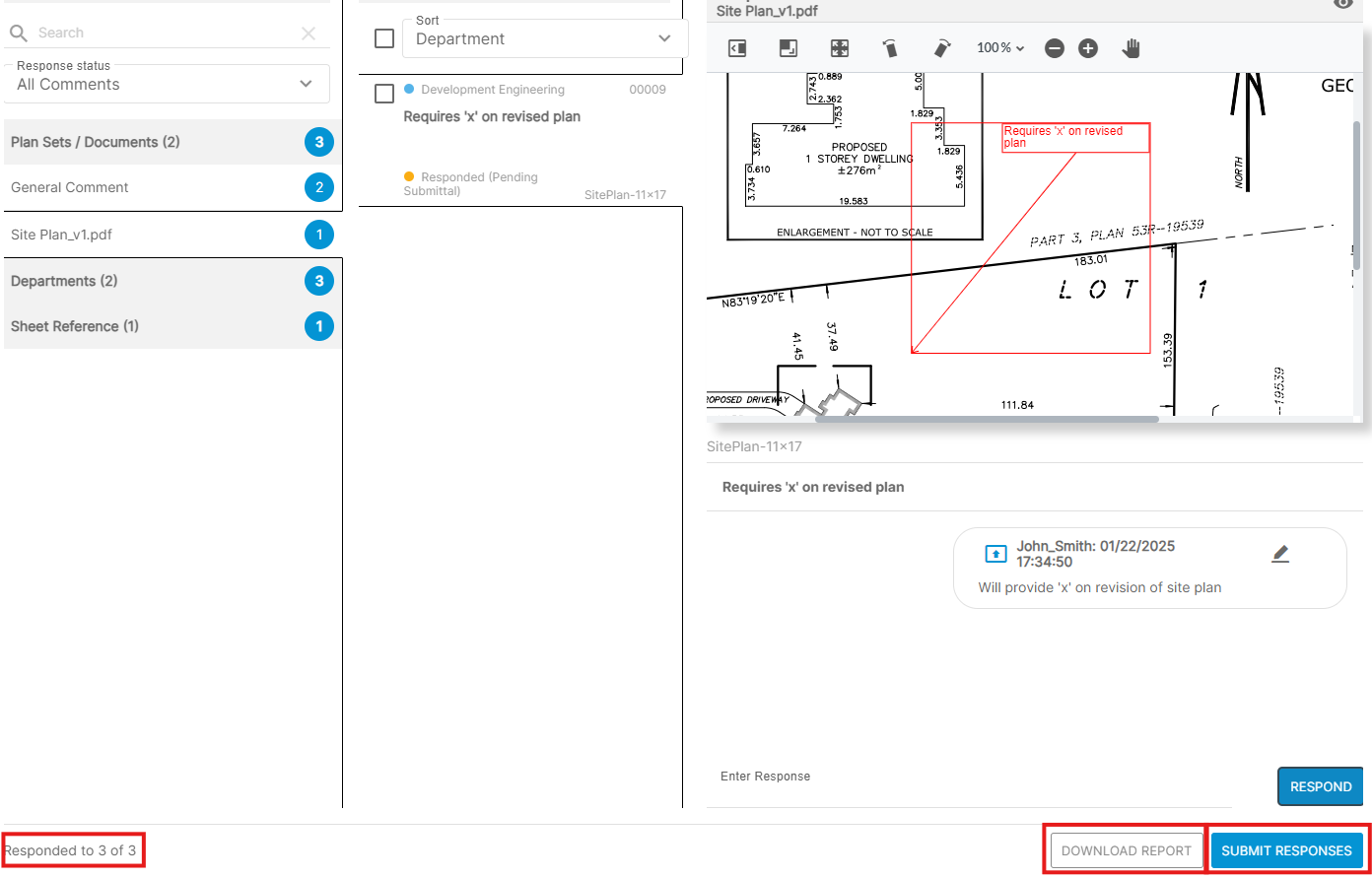
In this scenario, users will be unable to upload any documents (through the Submission Package section) until all comments provided are acknowledged.
To acknowledge comments:
- Select the Comments section.
- Select the applicable comments on the left side of the screen. You can view them by general/document, department, sheet reference etc.
- As each comment is reviewed, type the acknowledgement response and select Respond.
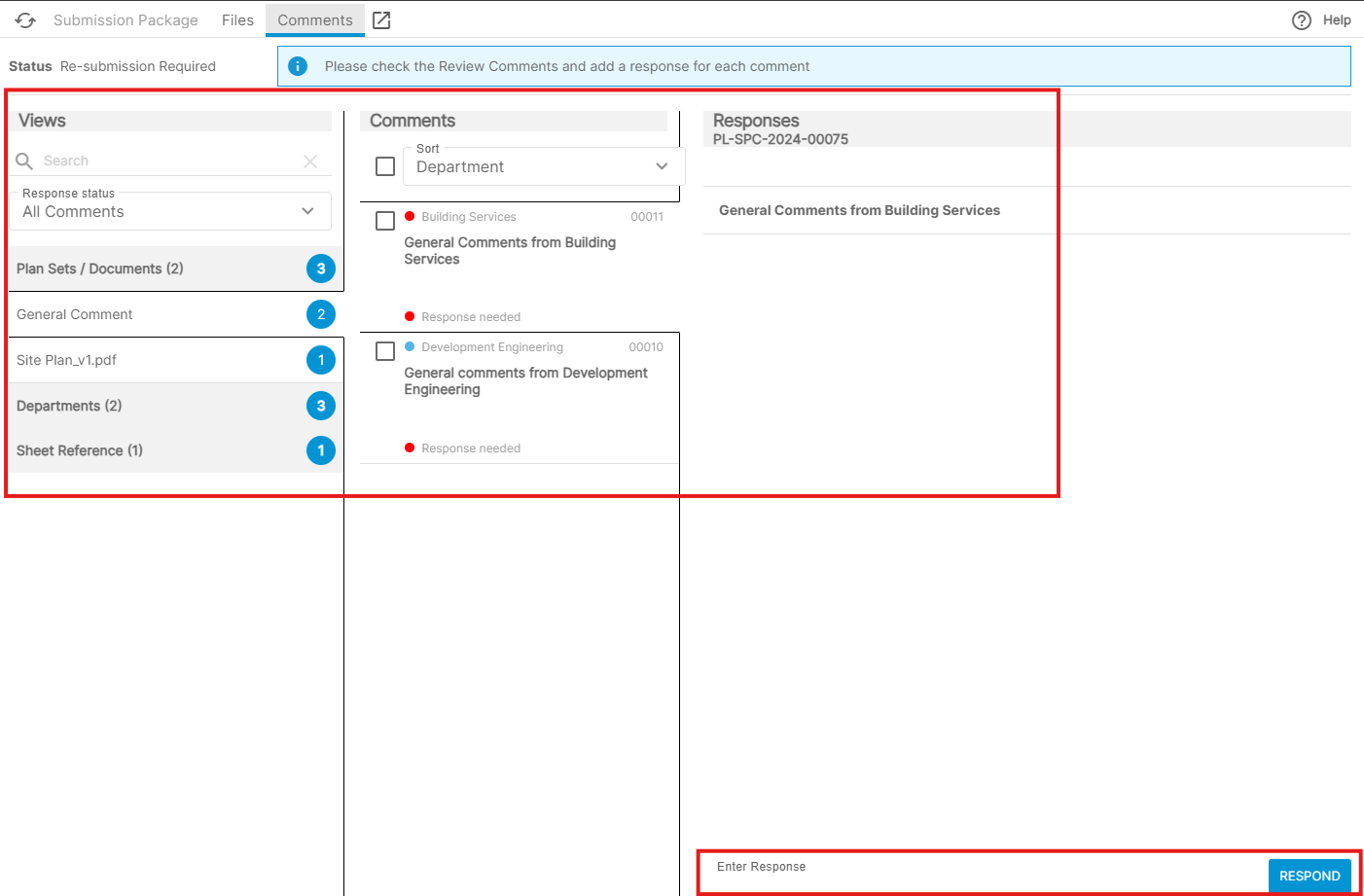
Once all comments have been acknowledged, select the Submit Responses option at the bottom of the page to proceed. At this point the user will be able to upload revised documents based on the comments provided.
Note: The Files section will remain available to the user during the comment acknowledgement stage to download PDF copies of staff provided correction reports (marked up plans etc.). For a simpler option, the user can download a single PDF copy of all comments and their related marked up plans by selecting Download Report.